How TagTrek Works — From Printing a QR Tag to Getting It Back
How TagTrek works step by step, from creating a tag and printing it to the finder's scan, the anonymous chat and the handover, explained by its makers.
A lost-and-found system has two users who have never met and will probably never meet again. One of them cares a lot (the owner). The other is doing a favour (the finder). Every decision in TagTrek comes from designing for both of them at once.
This post walks through the full loop as it actually runs in TagTrek, from the moment you create a tag to the moment your item is back in your hands. If you want our opinion on how well it all works, read the TagTrek app review. This one walks through each step.
The loop at a glance
| Step | Who | What happens |
|---|---|---|
| 1. Create | Owner | Add the item in the app, choose contact options and a mode |
| 2. Print | Owner | Pick a template and size, then print and attach the QR tag |
| 3. Scan | Finder | Point a phone camera at the code, a web page opens |
| 4. Alert | Owner | A push notification says the tag was just scanned |
| 5. Contact | Both | Call, WhatsApp, email, or an anonymous chat |
| 6. Return | Both | Agree on a handover and close the conversation |
Step 1 — Create a tag in the app
You add an item: a name like "Blue Samsonite suitcase", an optional description and an optional photo. A clear photo helps a finder confirm they're holding the right item.
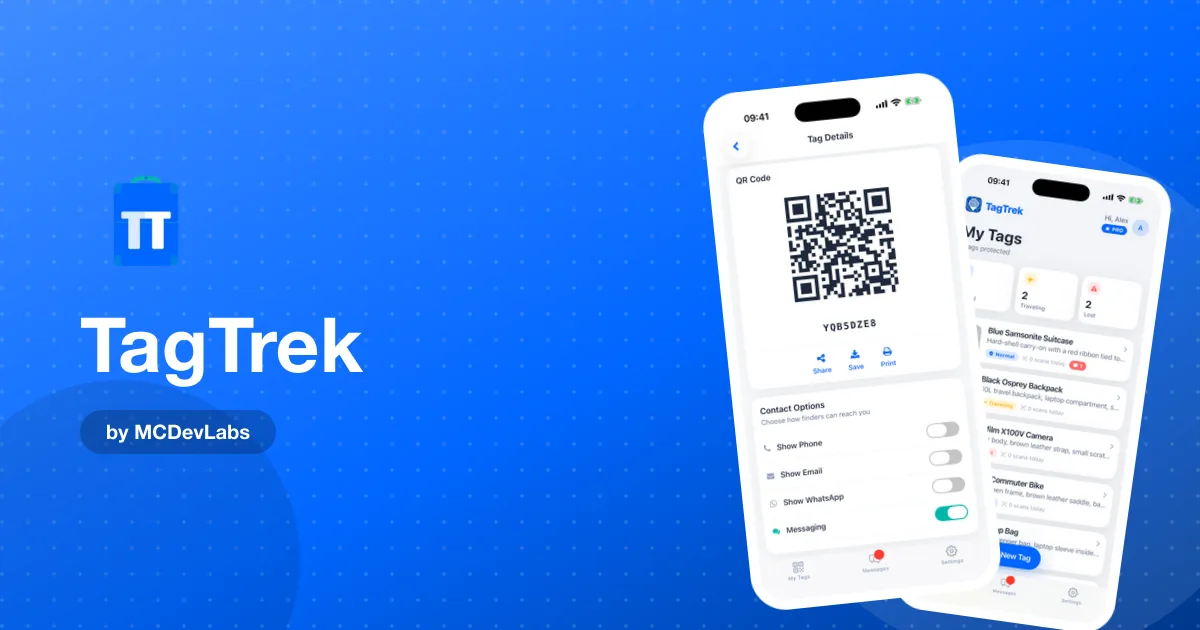
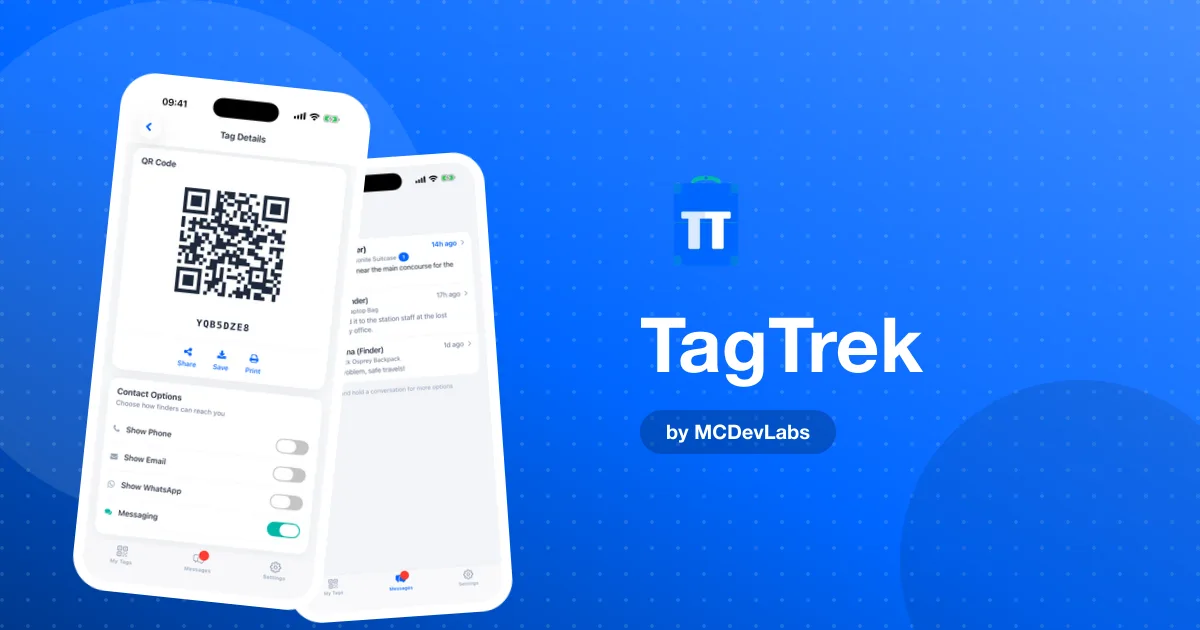
Then you decide how a finder can reach you. There are four contact options, and each one is a toggle:
- Phone — the finder sees a Call button
- WhatsApp — a button that opens a WhatsApp chat
- Email — opens a pre-filled email with the item name in the subject
- Anonymous chat — an in-app conversation where neither side has to share personal details
You can also add a custom message ("Reward if found, please get in touch"), a home address, and a temporary address such as a hotel that is shown instead of your home while you travel.
Step 2 — Print and attach
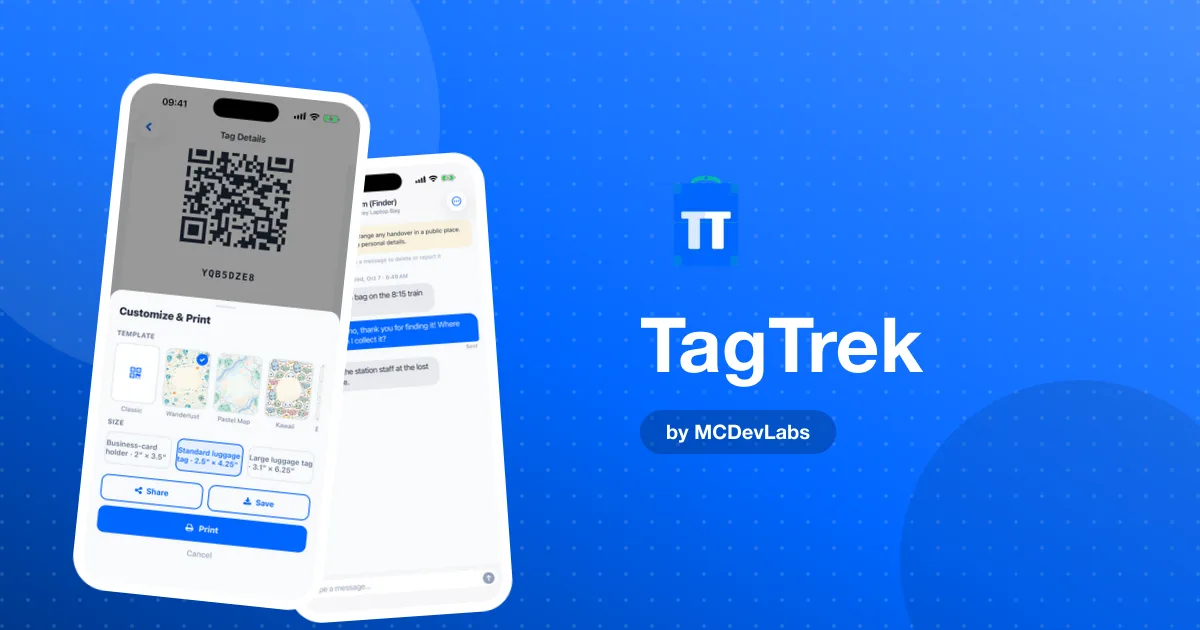
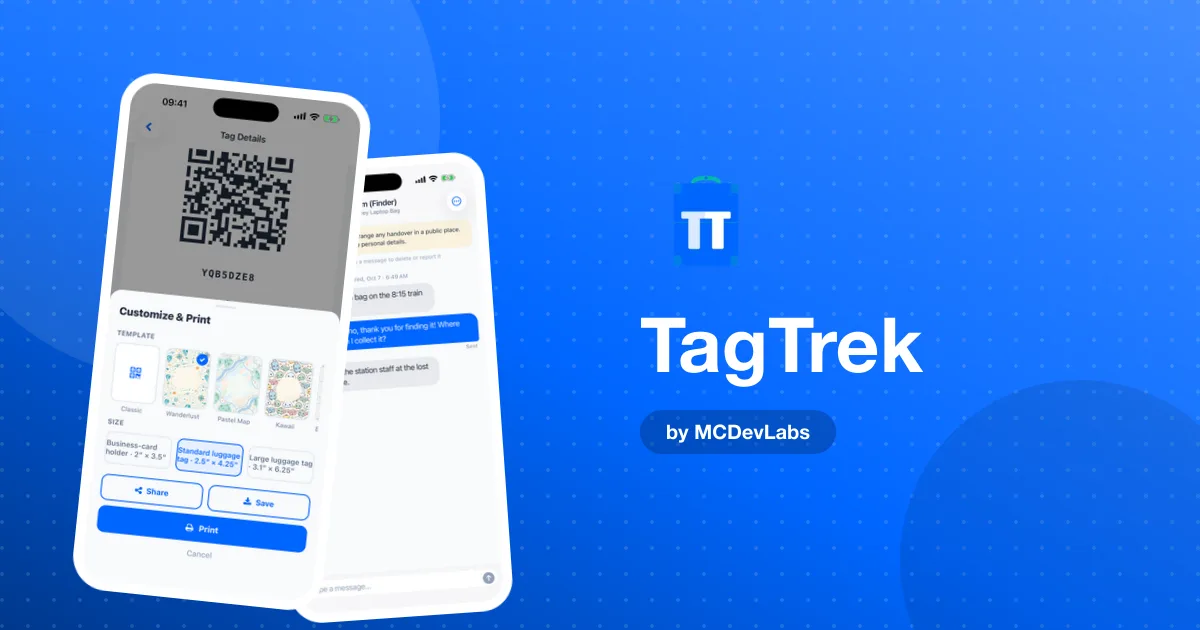
The app turns each tag into a print-ready design. You choose a template, Classic, Wanderlust, Pastel Map, Kawaii and others, and a size that matches your holder:
- Business-card holder, 2 by 3.5 inches
- Standard luggage tag, 2.5 by 4.25 inches
- Large luggage tag, 3.1 by 6.25 inches
Print at 100% or "actual size". Scaling to fit the page is the most common reason a printed code ends up a slightly wrong size for its holder. You can also share or save the image and take it to a print shop. There is no hardware to buy.
What should the printed side say beyond the code? Not much. The product team wrote a practical guide on what to put on a luggage tag, and the TagTrek templates follow the same idea. A clear "scan me to return" prompt beats a block of personal details.
Step 3 — The finder scans
This is the step that matters most. Any modern phone camera recognises the QR code and opens the tag page in a browser. No app store, no account, no login.
Each tag also has a short code that avoids characters people confuse, like the letter l and the number 1, or the letter o and zero. That matters when a tag is scuffed and someone has to type the address by hand. For the full consumer explanation, see the product blog's guide to how QR code luggage tags work.
Step 4 — The owner gets an alert
The moment a tag is scanned, the owner's phone gets a push notification. The dashboard shows live scan counts per tag, so you can see "2 scans today" on the item that has gone missing. A scan alert alone tells you something important: someone is physically holding your item right now.
Step 5 — What the finder sees depends on the mode
The tag page is not static. What appears depends on the mode you set:
- Normal shows the basics for everyday use.
- Traveling hides sensitive details while you are on the road and can show a temporary address instead of your home.
- Lost switches on every contact option you've enabled and shows a clear "this item has been marked as lost" banner, plus any reward note.
If you turned on Private Mode, a finder sees only a short private notice until you switch the tag to Lost. We cover the reasoning in depth in Normal, Traveling and Lost modes explained.
Step 6 — Talk, then hand over
If the finder taps Start chat, they can write to you without leaving the browser and without giving a name or a number. You reply from the app, where every conversation lives in one inbox, linked to the item it's about.
On the finder's side, your replies show up in the chat window without them needing to refresh the page. If the finder closes the tab and scans again later, the browser remembers their conversation and they pick up where they left off.
You decide the handover: meet at a front desk, ask them to leave it with a hotel or station lost-and-found, or arrange a courier. When it's done you can end the chat. If someone behaves badly, you can block them or report a message, and reported messages are hidden immediately.
The product site has a broader guide on how to actually get lost items returned that pairs well with this flow.
Where finders usually get stuck, and how we handle it
A smudged code that won't scan can be typed in, which is why the tag codes avoid look-alike characters. A tag whose owner has turned off every contact option shows a plain message saying so, rather than an empty card. A private tag explains that the owner has chosen to hide details for now. Each is a moment where a finder could give up, so each has a clear page of its own.
Try the loop yourself
The fastest way to understand TagTrek is to make a tag and scan it with a second phone. You will see the alert land, the page load and the chat open in under a minute. The free plan includes one active tag with every mode, so there's no reason not to try.
Download it from the App Store or Google Play. For the story behind the product, see the TagTrek case study.
Frequently asked questions
- What happens when someone scans my TagTrek tag?
- A web page opens in their browser. They see the item details and the contact options you enabled for the current mode, and you get a push notification about the scan.
- Can a finder contact me without seeing my phone number?
- Yes. If you enable anonymous chat, the finder can message you from the browser and neither side has to share a name, number or email.
- Do I need special stickers or tags?
- No. You print the designs yourself on labels, stickers or luggage tag inserts. Print at 100% so the design fits the holder size you picked.
- What if the finder closes the page?
- Their browser remembers the conversation for that tag, so scanning again or reopening the page brings the chat back.
Have an app idea?
We turn ideas into production apps on the App Store, Google Play, and Telegram. Let's build yours together.
Start a Project