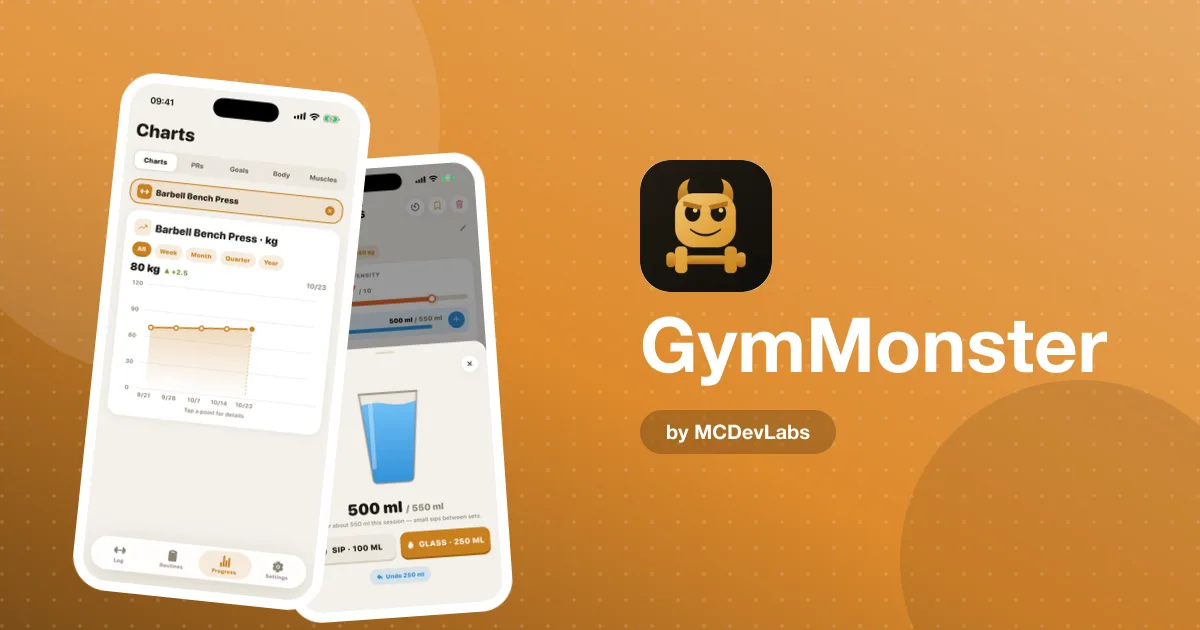
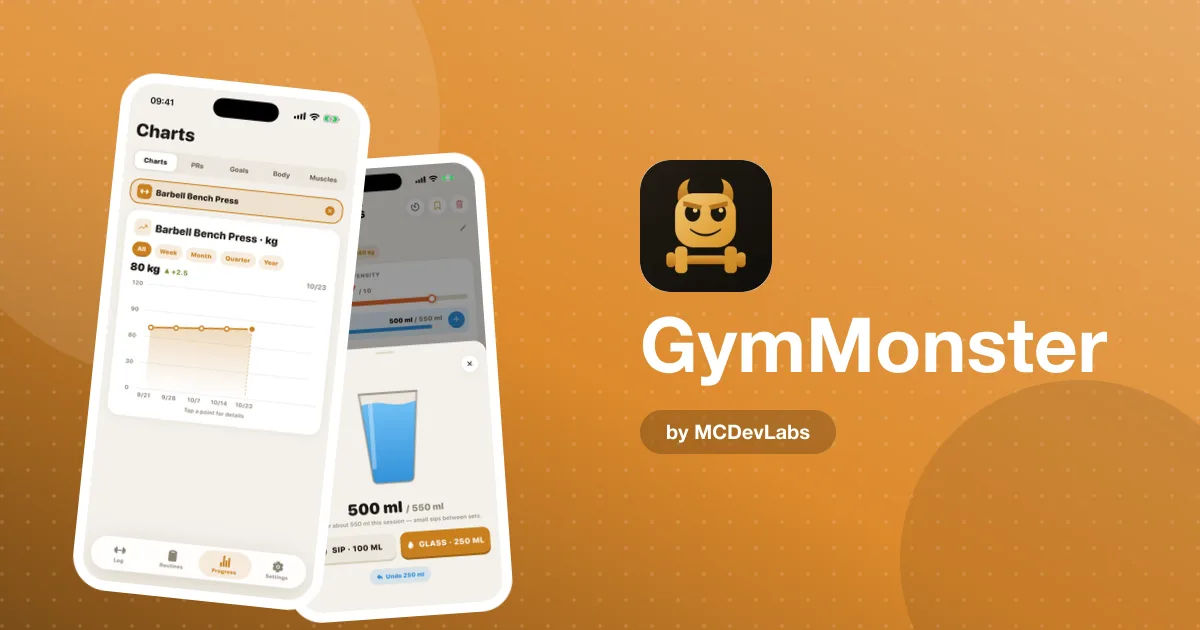
How GymMonster Works — A Full Workout Walkthrough, Step by Step
How GymMonster works, explained by the team that built it - from starting a routine to logging sets, rest timers, PRs and the stats you see afterwards.
The easiest way to explain a workout tracker is to walk through one workout. So instead of a feature list, here's what happens inside GymMonster during a normal session — what you tap, what the app does behind the scenes, and why we designed each step the way we did.
If you've never seen it, GymMonster is a gym tracker we build at MCDevLabs. It runs as a Telegram Mini App and as a native app for iOS and Android. The flow below is the same on both; we'll note where they differ.
Step 1 — The home screen tells you where you stand
You open the app and the home screen shows three things: your day streak, this week's check-ins, and your recent workouts with their volume and duration. There's one obvious button to start training.
We chose these three because they answer the questions people actually have when they walk into a gym: Am I on track this week? What did I do last time? What's next? Everything else lives one level down.
Step 2 — Pick a routine (or start empty)
You can start from a pre-built routine — Push, Pull, Legs, Upper, Full Body — or one you made yourself, or start an empty workout and add exercises as you go. If you're new to structured training, the product blog has a complete push/pull/legs routine for beginners you can load and follow.
Adding an exercise opens the library. You search by name or filter by muscle group or equipment, then add it in one tap. Each exercise has a short demo video and form tips, so you can check technique before your first set.
Step 3 — Log each set as you finish it
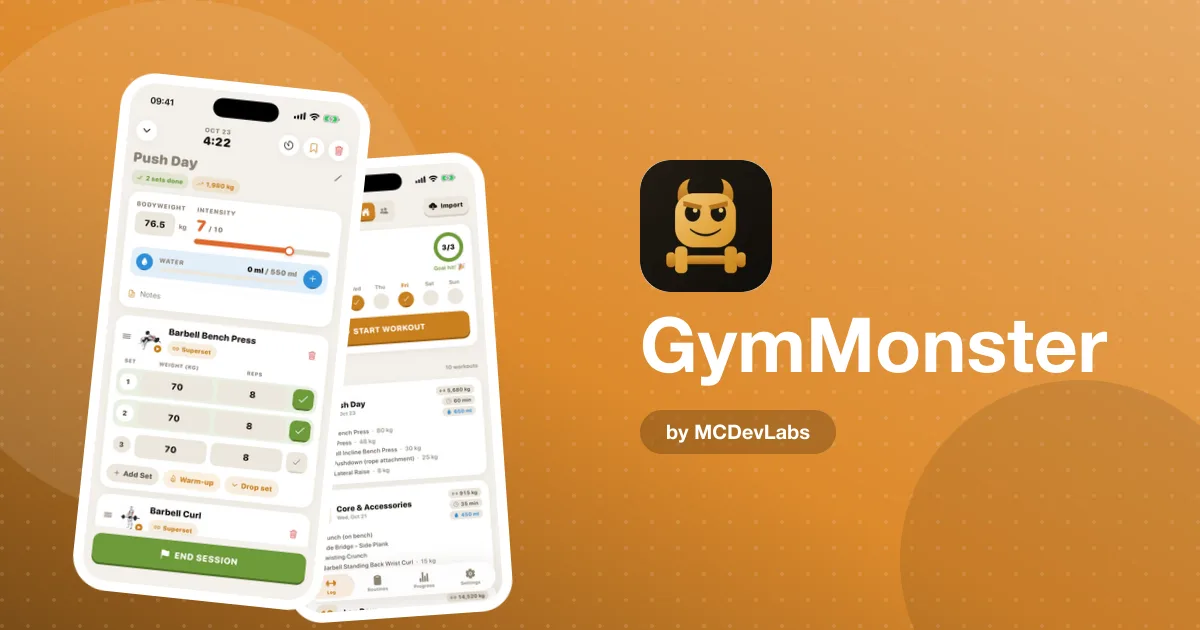
This is the core of the product. For each set you enter weight and reps, then tick it off. A few details matter more than they look:
- Warm-up sets are marked separately, so they don't inflate your working volume.
- Drop sets and supersets are part of the log, not workarounds.
- Weights are stored in the unit you logged them in (kg or lbs) and converted for display, so switching units later never corrupts your history.
- Timed exercises (planks, cardio, carries) use a built-in stopwatch, or you can enter the time manually.
| What you enter | What GymMonster does with it |
|---|---|
| Weight × reps on a working set | Adds to the workout's total volume and the exercise history |
| A warm-up set | Keeps it in the log but excludes it from volume |
| A heavier weight than ever before | Feeds your personal record chart |
| A timed set | Saves the duration from the stopwatch or your manual entry |
Step 4 — Rest, without leaving the screen
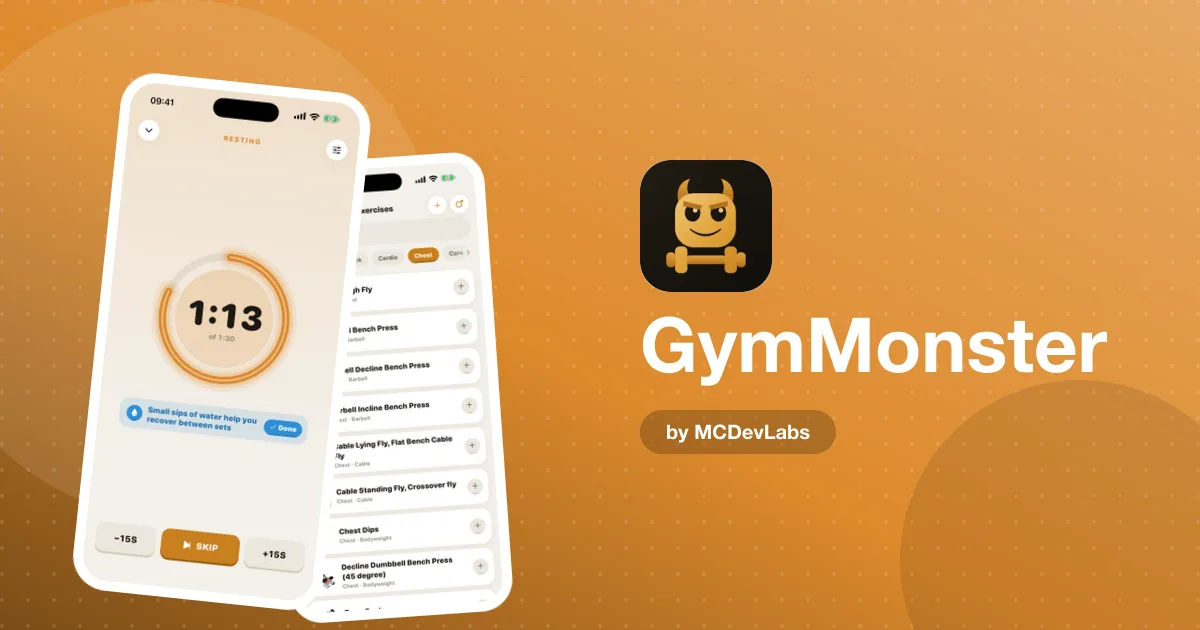
In the mobile app, a rest timer starts automatically after each set. You don't have to remember to start it, and you don't have to switch to your phone's clock app and lose your place. How long you rest is up to you — the product team wrote a good, evidence-based guide on how long to rest between sets by goal.
Step 5 — Finish and see what changed
When you finish, the workout is saved with its total volume and duration, and it shows up on your home screen and in your friends' feed. Several things update in the background:
- Volume is calculated as weight × reps across all working sets, converted into your preferred unit. Bodyweight and timed work don't count toward it.
- Personal records update if you beat a previous best, and each PR is plotted over time.
- The muscle heatmap adds your sets to the muscle groups each exercise trains.
- Badges are checked against your totals — workouts logged, streaks, PRs, hours, and total volume lifted.
The point of all of this is to make progressive overload visible. If the numbers on your main lifts trend up over weeks, you're progressing. If they don't, you know which lift to look at. The product blog's guide to tracking progressive overload set by set goes deeper on what to look for.
Step 6 — Check progress when you want to, not every session
The analytics view shows workouts, hours and average intensity at a glance, with weekly training-frequency charts you can filter by exercise and time range. You don't need to open it every session. We designed it for a weekly or monthly check-in: Did I train as often as I meant to? Is my squat moving?
The body section lets you log bodyweight and nine circumferences (neck, shoulders, chest, waist, hips, biceps, forearms, thighs, calves), each charted over time.
What happens between sessions
A tracker isn't only used in the gym. A few parts of GymMonster are designed for the days in between:
- Goals. Set a target for a specific exercise — a weight on your bench press, for example — and check it off when you hit it. One clear target is often more motivating than a page of charts.
- The friends feed. Your finished workouts appear in your friends' feed automatically, and theirs appear in yours. You can react with an emoji or copy a session you like into your own routines.
- Badges. Milestones unlock as your totals grow — workouts logged, streaks, PRs, goals, hours and total volume. The volume badges compare your lifetime total with real objects, such as "Whale" at 50,000 kg.
- Weekly commitment. In the mobile app you can choose how many days a week you plan to train, and that drives a weekly streak, so planned rest days don't break anything.
None of these need daily attention. They're there so that opening the app on a rest day gives you a reason to come back tomorrow.
Where the Telegram and mobile versions differ
| Telegram Mini App | Mobile app (iOS / Android) | |
|---|---|---|
| Install | None — opens inside Telegram | From the App Store or Google Play |
| Devices | Anywhere Telegram runs, including desktop | iPhone and Android phones |
| Premium payment | Telegram Stars | App Store / Google Play |
| Core logging, routines, PRs, heatmap | Yes | Yes |
Premium users can move their history between the two through an Excel export and import.
Why it's designed this way
Every step above follows one rule we set early: nothing should stand between finishing a set and logging it. Logging a set is weight, reps and a tick — the rest of the app waits until you're done. Analytics and social features are rewards for logging, never obstacles to it.
Try one workout
The best way to understand the flow is to log a session. Download GymMonster on the App Store or Google Play, or open the Telegram version from the GymMonster site. For a broader look at every screen, see our GymMonster feature tour, and for screenshots, the GymMonster case study.
Frequently asked questions
- Does GymMonster count warm-up sets in my volume?
- No. Warm-up sets stay in your log but are excluded from total volume, so your numbers reflect your working sets only.
- Can I switch between kg and lbs?
- Yes. Each set is stored in the unit you logged it in and converted for display, so changing your preferred unit never corrupts your history.
- Does GymMonster have a rest timer?
- Yes. In the mobile app a rest timer starts automatically after each set, and both versions include a stopwatch for timed exercises and cardio.
- Do I need to follow a pre-built routine?
- No. You can start from a pre-built routine, build your own, or start an empty workout and add exercises as you go.
Have an app idea?
We turn ideas into production apps on the App Store, Google Play, and Telegram. Let's build yours together.
Start a Project